Help · How it works

You generated a world.
Here is how to use it.

Songe generates low-poly worlds from a sentence — terrain, paths and named landmark meshes — for solo and small-team game devs. This page covers the workflow, exactly what lands in your export, and how to drop a world into Godot, Unity, Unreal or Blender so it looks the way it should.

00The short version

A low-poly world generator for games — not a finished-art generator.

Songe turns a sentence into a walkable, editable low-poly world: terrain, paths and named landmark meshes, the blockout stage of level design done in minutes instead of an afternoon. It is a behind-the-scenes tool that gets you to a world you can judge — you take it into your own engine and build the real level on top of it.

What it is

A fast way to block out a level — walkable terrain plus composed landmark meshes, ready to refine.

What it is not

Not ship-ready environment art, and not an AI art generator. The world is a starting point.

Who it is for

Solo and small-team game devs making stylized 3D games — Godot-first, engine-agnostic.

01The loop

Prompt, explore, refine, export.

Four steps from an idea to a world open in your engine. The first three happen in the browser; the fourth is where Songe hands off to your toolchain.

  1. 01
    Prompt

    Describe the world

    One or two plain sentences — the biome, the landmarks, how the space should read. Songe drafts the terrain and composes a stylized low-poly world around it.

    “a clifftop village above a blue lake — timber houses, a watchtower, switchback paths to the shore”

  2. 02
    Explore

    Walk the world in your browser

    The result is real geometry, not a render. Orbit it, drop in the character controller and walk the terrain. Every landmark is a named, selectable mesh.

    Generation takes ~1–3 minutes. Some prompts need a retry — that is expected in beta.

  3. 03
    Refine

    Adjust a single element

    Select a landmark and change its style or palette — recolour the keep, swap a pine for an oak. The rest of the world stays exactly where it is.

    Refine targets one hand-placed element at a time. Whole-world re-rolls are a fresh generation.

  4. 04
    Export

    Take it into your engine

    Download the world and open it in Godot, Unity, Unreal or Blender. You finish it there — Songe gets you to a walkable draft, fast; your engine is where it ships.

    Scale and orientation come through intact. The lighting recipe below makes it read right.

02The download

What is actually in your export.

When a world finishes you can download it from the run's Download menu. Here is what each file is and how the geometry is structured.

.obj

The map mesh

Wavefront OBJ — all geometry, one named object per map element. This is the file you import.

.mtl

Material sidecar

Flat colour materials referenced by the .obj. Keep it in the same folder as the .obj.

.png

Hero render

The map rendered from the chosen camera — a quick reference, not used by the engine.

.blend

Blender file

The full Blender scene, if you want to edit or re-render it directly.

How the mesh is structured

Open the .obj in a text editor and you will see this. Three things matter for getting it to look right in your engine:

map.obj
# Blender 4.2.0
mtllib map.mtl
o Terrain
v -140.00 0.96 140.00 0.47 0.66 0.36
o MegalithCollapse
o LowPolyPath(4200)_dirt_path
usemtl strata_ruin_sandstone
f 1//1 2//2 3//3
  • o <name>

    Every map element — terrain, each landmark, each path — is its own named object block. In-engine that becomes a separate child node, so you can select, move or delete one element without touching the rest.

  • vertex colours

    Each terrain vertex carries an RGB colour right on the v line. There are no UVs and no texture maps — the look is flat low-poly with per-vertex colour. Your engine must be told to use vertex colours or the terrain reads grey.

  • scale & orientation

    Roughly 1 unit = 1 metre, Y-up, grounded near zero. Godot and Blender take it as-is; Unreal needs a ×100 scale (centimetres) and Y-up→Z-up conversion.

GLB export is on the way. Today the scene ships as .obj + .mtl. A glTF/GLB export — the more convenient format for Godot and Unity, with materials packed in — is planned but not finalised. Until it lands, any import detail tied to the final format may change; the .obj steps below are the verified path right now.

03Lighting and shaders

Imported raw, a world looks wrong. That is normal.

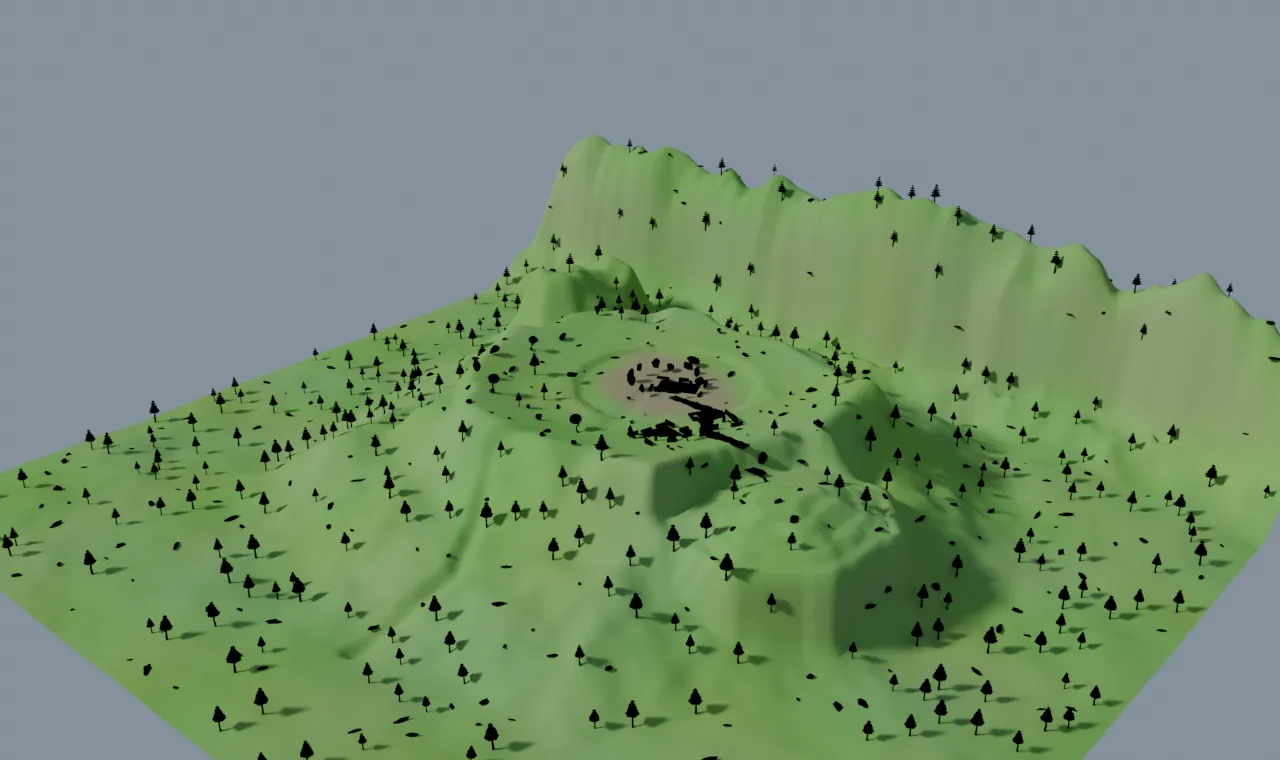
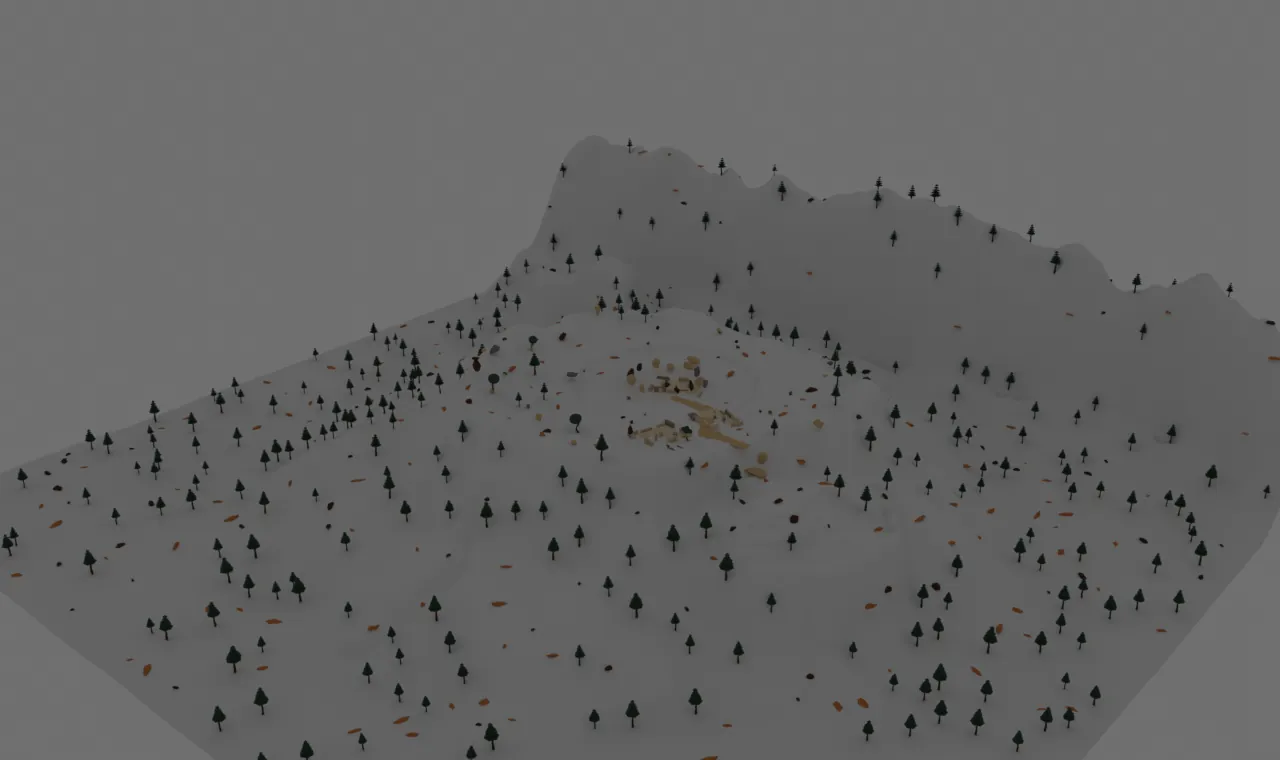
Songe builds flat-shaded low-poly worlds and previews them through an AgX-style view transform. The export carries geometry and colours but no lights and no cameras — so a fresh import looks colourless and dark until you set up shading. Here is the same generated world, before and after.
A Songe scene imported raw — flat grey, no key light, terrain colours not shown.raw import
The same scene after the lighting fix — sun, ambient fill, flat materials and terrain vertex colours.sun + ambient + flat shading
A real generated scene — 722 named meshes, ~280 m across — rendered headless in Blender. Left: imported raw with no lighting set up. Right: after a sun, ambient fill, flat materials and terrain vertex colours. Same file, same camera. Drag the handle to wipe between them.

Add a sun

One directional light angled low. The export has no lights, so without this the scene is unlit and flat.

Add ambient fill

A mid-grey/blue world or environment colour so shadowed faces are not pure black.

Flat / unlit materials

Set materials to unlit, toon, or zero-specular. And enable vertex colours so the terrain palette shows.

The exact, per-engine version of this recipe is in the next section — pick your engine.

04Per-engine import

Import into your engine.

Concrete numbered steps for each engine — getting the file in, fixing scale and orientation, adding collision so you can walk it, and the lighting recipe that makes it read correctly.

Verified locallyFrom documentation — confirm before publishing

Import into Godot

Godot 4.x. The blockout drops in as a single imported scene you can walk immediately.

Steps written from documentation — not yet locally verified. Confirm these against your engine version before publishing a workflow on top of them.

  1. 01

    Copy the files into the project

    Drop the .obj and its .mtl together into your project's res:// folder. Godot 4 imports OBJ on detection; keep the two files side by side.

  2. 02

    Instance the scene

    Drag the imported mesh into your level scene. Each named object from the export becomes a child MeshInstance3D, so you can select a landmark and move or delete just that one.

  3. 03

    Fix orientation if needed

    Songe exports Y-up. Godot is also Y-up, so the scene usually lands upright. If it is on its side, set the OBJ import preset's rotation, or rotate the parent node -90° on X.

  4. 04

    Add collision to walk it

    Select the mesh, then Mesh → Create Trimesh Static Body (or Create Single Convex). Drop a CharacterBody3D on top and you can walk the terrain.

Lighting & shader recipe

A raw import looks wrong — colourless and unlit. Apply this and the blockout reads the way it does in the Songe viewer.

  • Add a DirectionalLight3D — this is your sun. Angle it ~50° down; enable shadows.
  • Add a WorldEnvironment node; in the Environment set the Background/Ambient to a soft sky colour so shadowed faces are not black.
  • For the flat low-poly look, set each material's Metallic to 0 and Roughness to 1; or switch the shading mode to unshaded for a pure toon read.
  • Songe meshes carry vertex colours — enable Vertex Color → Use as Albedo on the terrain material so the ground shows its palette.
  • Optional: a small amount of SDFGI or a low ambient term keeps the scene from going muddy.
05Good to know

A few honest answers.

QIs the export ready to ship?

No — and it is not meant to be. Songe gives you a blockout: a fast, walkable low-poly world to judge a level idea before you commit hours to it. You take it into your engine and finish it there. Treat it like a greybox, not final art.

QWhat format do I actually receive?

Today the world downloads as a Wavefront .obj with an .mtl material sidecar, plus the hero render as a .png. The .blend file and the build script are also available. GLB export is on the roadmap — see the caveat below.

QWhy does the terrain look grey when I first import it?

The terrain's colour is stored as per-vertex colour data, not in the .mtl. Most importers do not wire vertex colours into the material automatically. Enable vertex colours on the terrain material and the palette appears — every engine section below says how.

QCan I walk on it?

Yes. The terrain is a real mesh. Add a collider (trimesh / mesh collider) and drop in a character controller. The world is built to be walked, not just looked at.

QWhy does it look flat and toy-like, not realistic?

That is the art direction. Songe builds stylized flat-shaded low-poly worlds — clean silhouettes a solo dev can read and iterate on. Keep materials unlit/flat in-engine to preserve that look.

That is the whole loop. Go block out a level.

Prompt it, walk it, refine an element, export it into your engine. Five free worlds to start — no card.